Explore
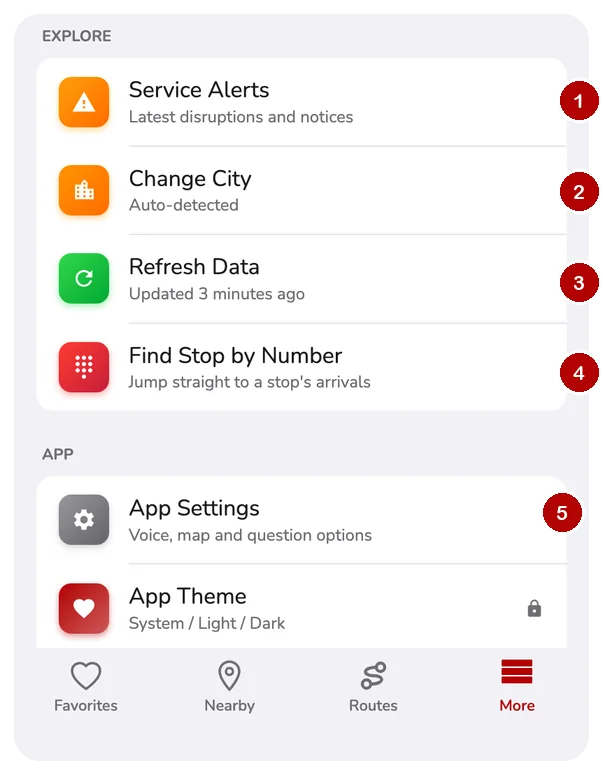
- Service Alerts: delays and detours.
- Change City: pick another city (CityTransit app).
- Refresh Data: get the latest schedules.
- Find Stop by Number: see below.
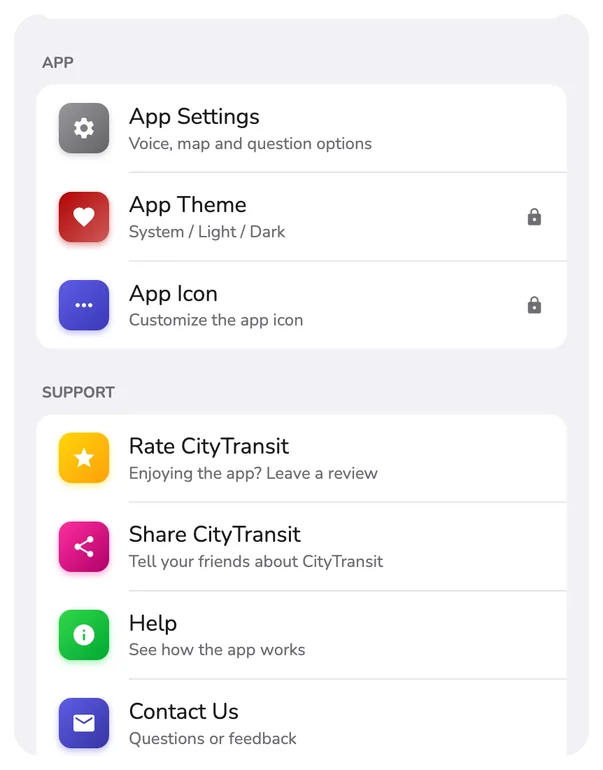
- App Settings: see below.
Cities with offline maps also get a Transit Maps row.
Find Stop by Number
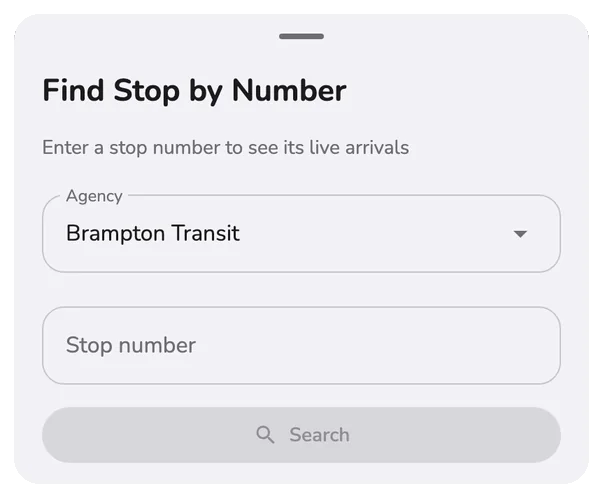
Pick the agency, type the number on the stop sign, tap Search.
App Settings
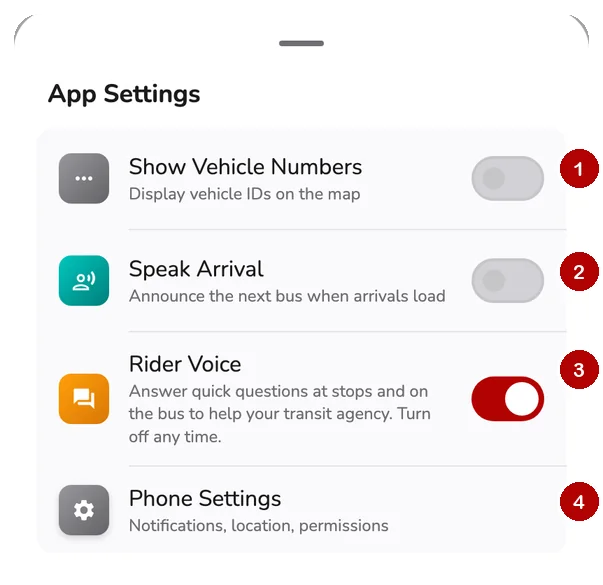
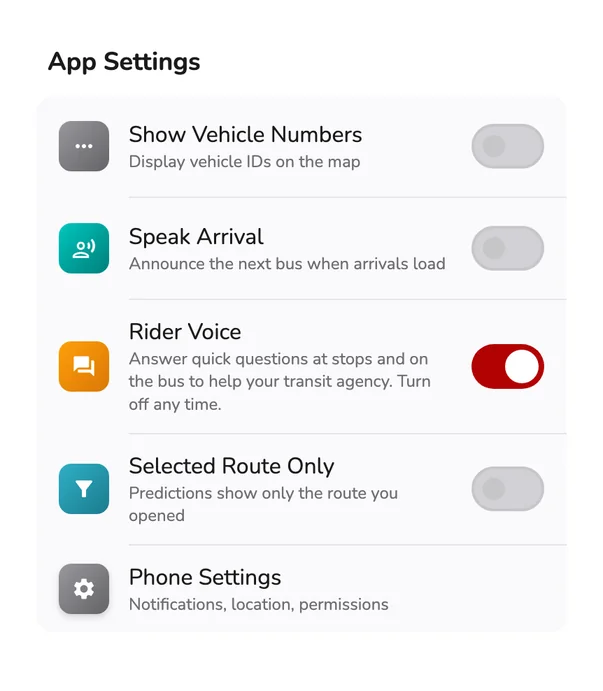
- Show Vehicle Numbers: IDs on the map.
- Speak Arrival: reads the next bus aloud.
- Rider Voice: optional questions. About.
- Phone Settings: notifications and permissions.
Selected Route Only shows only on phones that had the app earlier: predictions show just the route you opened.
Theme and icon
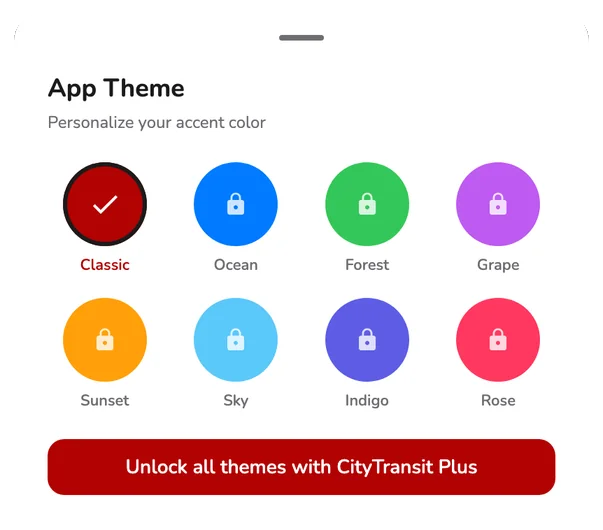
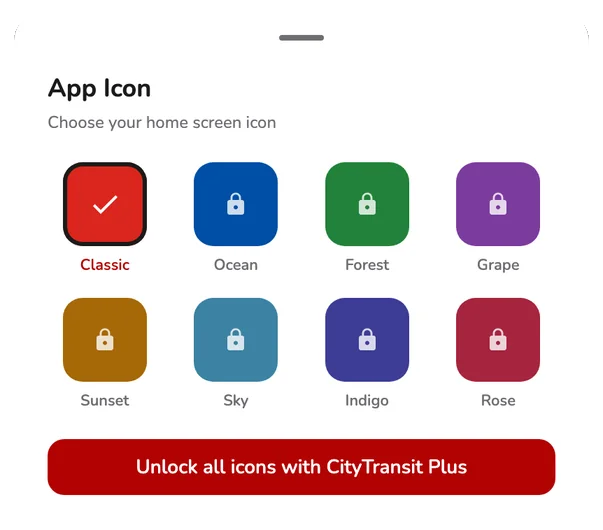
Classic is free. The other colors and icons come with CityTransit Plus.
Questions
Where are the app settings in CityTransit?
Open the More tab and tap App Settings. It holds Show Vehicle Numbers, Speak Arrival and Rider Voice, plus a shortcut to your phone's own settings for notifications, location and permissions.
How do I change my city in CityTransit?
In the CityTransit app, open More and tap Change City, then search for a city. By default the app detects your area automatically, which More shows as Auto-detected.
How do I refresh transit data?
Open More and tap Refresh Data. The row shows when the schedule data was last updated, and tells you if a refresh failed so you can tap to try again.
How do I find a stop by its number?
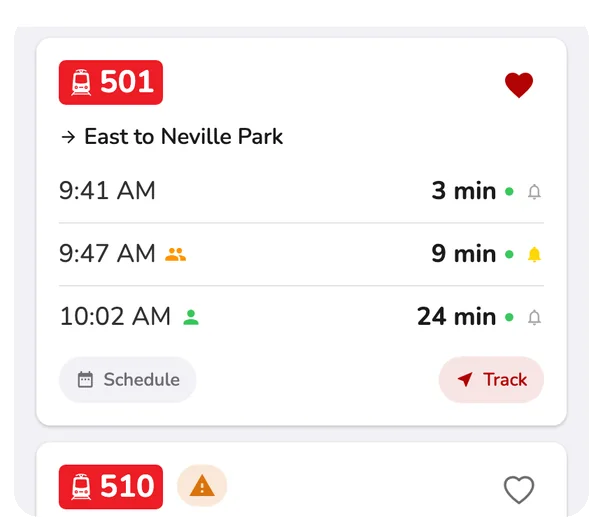
Open More, tap Find Stop by Number, choose the agency, type the number posted on the stop sign and tap Search. You go straight to that stop's live arrivals.
How do I change the theme or app icon?
Open More and tap App Theme to choose System, Light or Dark and an accent color, or App Icon to change the icon on your home screen. Classic is free; the other accent colors and extra icons come with CityTransit Plus.
What is the Selected Route Only option?
It is only shown on phones that had the app before the option existed. When it is on, predictions show just the route you opened instead of every route at the stop.